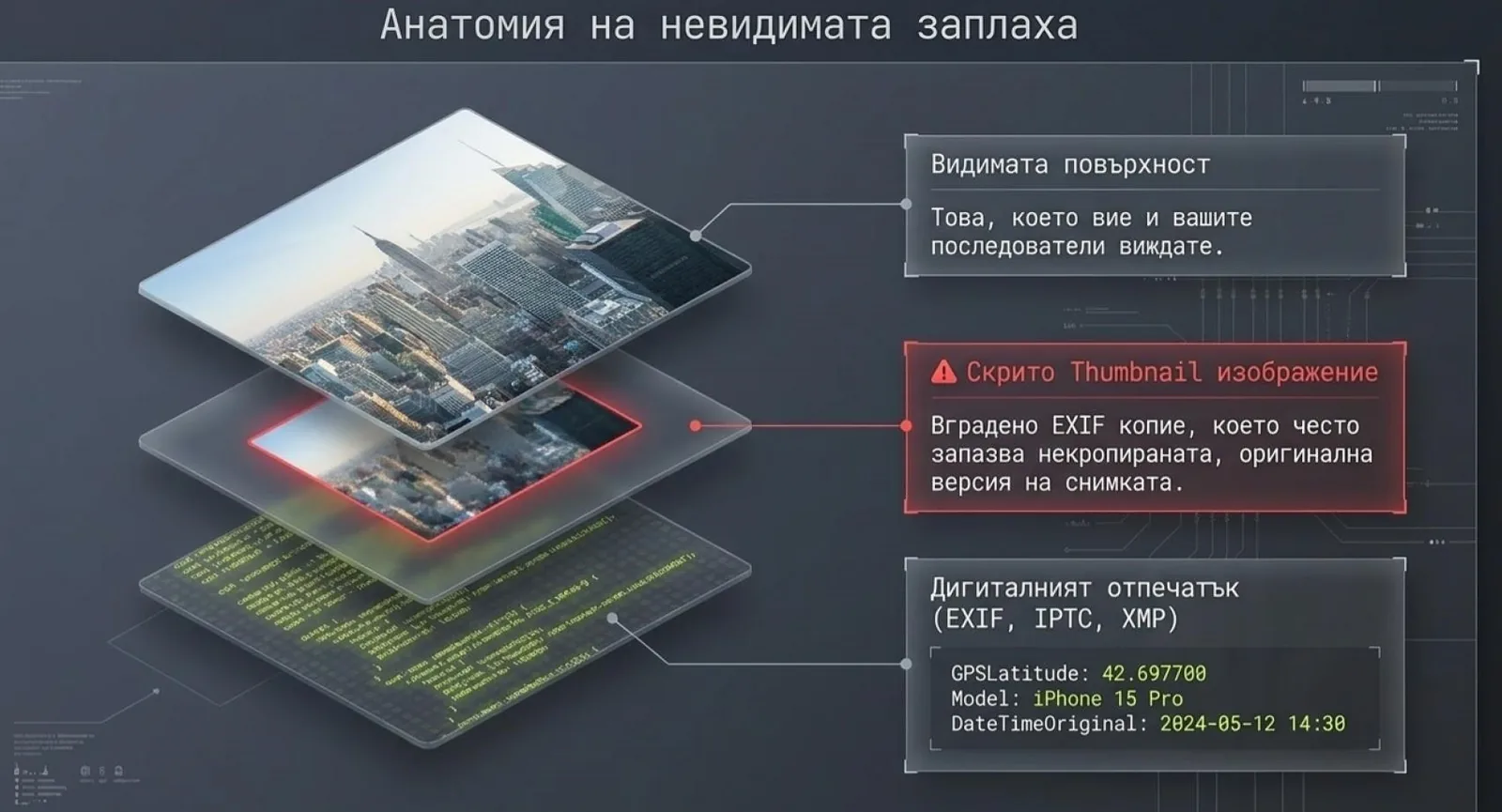
Photo privacy isn't a single action — it's a layered process that spans multiple stages: how you configure your camera, what you do before sharing, how you share, and what you verify afterward. This checklist covers all 12 critical steps, organized into four phases.
Click each item to mark it as complete. Your progress is saved in your browser session.
✅ Your Progress
0 / 12 steps
Click each step to mark it complete.
Phase 1
Before You Shoot — Camera & Device Configuration
1
Disable GPS tagging in your camera app Easy
iPhone: Settings → Privacy & Security → Location Services → Camera → Never. Android: Camera app → Settings → Location tags → Off. This prevents new photos from embedding GPS. Note: does not affect existing photos already on your device. Third-party camera apps (Halide, ProCamera) have their own location settings — check those too.
2
Audit existing photos with GPS data Medium
Use VerClood Pro or your OS file manager to check which photos in your library already contain GPS coordinates. On iPhone, the Photos app shows a map of geotagged images under Albums → Places. Identify photos you've already shared — those coordinates are already out there, but you can prevent future exposure.
3
Review camera EXIF settings Easy
Many cameras let you disable GPS, copyright embedding, and serial number recording in their settings menu. For dedicated cameras (Canon, Sony, Nikon): check the EXIF/GPS settings in the shooting menu. Disable GPS if not needed. Consider setting an author/copyright field with a pseudonym rather than your real name if you shoot publicly.
Phase 2
Before You Share — Metadata Removal Workflow
4
Strip all metadata before sharing any sensitive photo Easy
Use VerClood Pro — open the app, drop your photo, select "Remove All" mode, and download the cleaned version. The entire process takes under 30 seconds. Make this a non-negotiable step before sharing photos that include: your home, your children, sensitive locations, or anything where your whereabouts matter.
5
Check for embedded EXIF thumbnails Medium
JPEG files can contain a miniature preview image in their EXIF data that may show the uncropped original even after you've cropped the main image. VerClood Pro's Forensics panel detects and flags embedded thumbnails. If your file has one, the "Remove All" mode will eliminate it along with the rest of the metadata.
6
Verify removal before sharing Easy
After processing, drag the cleaned photo back into VerClood Pro and check the Privacy Score and metadata table. It should show 0 fields with a score of 10/10. Alternatively, right-click → Properties → Details on Windows, or use the Forensics panel's deep scan. Never assume removal worked — always verify.
7
Scan for IPTC and XMP metadata, not just EXIF Medium
Many users focus on EXIF but forget IPTC (the news agency standard with author and location fields) and XMP (Adobe's standard with editing history). If you edit photos in Lightroom or Photoshop, XMP metadata is often written. VerClood Pro's forensics panel shows all three standards in separate tabs — check all three before sharing professionally-edited images.
🛡️ Do Steps 4–7 Right Now
VerClood Pro handles EXIF, IPTC, XMP, and thumbnail removal in one click. Free, no uploads.
Open VerClood Pro →
Phase 3
How You Share — Platform & Method Safety
8
Never send photos "as document" in WhatsApp or Telegram Easy
This is the most common metadata exposure mistake. When you send a photo as a "document/file" (to avoid compression), both WhatsApp and Telegram preserve all original metadata including GPS. Always send as a photo (compressed mode) — or better yet, strip metadata first and then send as document if you need original quality.
9
Strip photos before emailing them Easy
No email provider strips EXIF from attachments. Gmail, Outlook, ProtonMail, iCloud Mail — none of them process your photos. If you attach a photo to an email, the recipient receives the full original file with all metadata intact. Always strip first, then attach. This is especially critical for photos shared with strangers, professionals, or anyone outside your immediate circle.
10
Delay posting vacation photos until you're home Easy
Even if you've stripped GPS data, posting vacation photos in real-time signals that you're away from home — creating an opportunity for burglary and social engineering. Consider holding holiday photos for 24–48 hours and posting them after your return. This eliminates the "I'm not home" signal entirely. See our full analysis in Your Vacation Photo is Betraying You.
Phase 4
Advanced Protection — Verification & Long-Term Habits
11
Run ELA forensics on photos before publishing professionally Medium
If you work as a journalist, photographer, or content creator, run Error Level Analysis on photos before publishing — both your own and those you receive from others. ELA can reveal editing inconsistencies. VerClood Pro's ELA tool is free, browser-based, and requires no upload. For received photos, ELA can flag potential manipulation before you stake your credibility on them.
12
Install VerClood Pro as a PWA for one-tap access Easy
VerClood Pro is a Progressive Web App — install it to your home screen for instant access without opening a browser. iPhone: Open in Safari → Share → Add to Home Screen. Android: Open in Chrome → Menu → Add to Home Screen (or Install App). Once installed, it works completely offline. Having it one tap away removes all friction from your privacy workflow.
🎉 Completing the Checklist
Once all 12 steps are in place, your photo privacy posture is significantly stronger than 95% of users. The most impactful single action is Step 4: stripping metadata before every share. Everything else builds on that foundation.
Quick Reference Card
Print or bookmark this summary for your daily workflow:
Before Every Share:
1. Open VerClood Pro → 2. Load photo → 3. Check Privacy Score → 4. Remove All → 5. Verify → 6. Download → 7. Share ✓
Never Do: ❌ Email photos without stripping · ❌ Send as document in WhatsApp/Telegram · ❌ Upload to servers for EXIF removal · ❌ Trust platforms to protect you
Never Do: ❌ Email photos without stripping · ❌ Send as document in WhatsApp/Telegram · ❌ Upload to servers for EXIF removal · ❌ Trust platforms to protect you
Dig Deeper
Each step in this checklist connects to a broader topic. These articles cover the key areas in detail:
- How to Remove EXIF and GPS Data — Complete Guide — covers Step 4 in depth with tool comparisons
- GPS Metadata Risks in Vacation Photos — the real-world threat model for Steps 1 and 10
- Which Social Media Platforms Leak Your Location? — platform-by-platform guide for Steps 8 and 9
- How Bellingcat Detects Fake Photos — the forensics techniques behind Step 11
- VerClood vs ExifTool vs Online Tools — tool selection guide for Step 4